Flatten a PDF form
Make form answers and comments part of the page, so nobody can click on them and change them. Your file never leaves this device.
or drop a PDF here
Stays on your phone or computer. Only you see it.
What flattening a PDF does
A fillable PDF form keeps each answer in a box that any PDF app can still change. Comments, such as sticky notes, highlights, text boxes and shapes, sit on top of the page in the same way. Flattening draws every answer and comment into the page itself and removes the boxes. The PDF looks the same, but there is nothing left to click on and change.
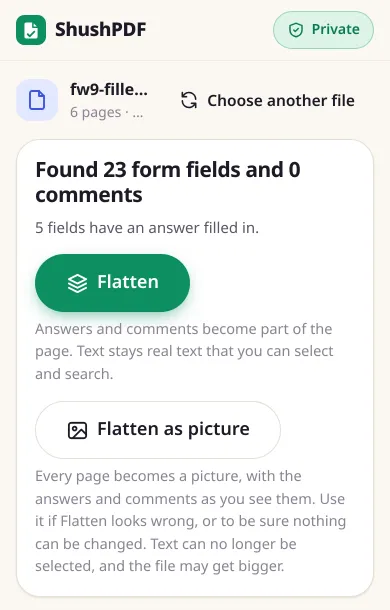
When you choose a file, we first tell you what is in it, for example Found 23 form fields and 0 comments, and how many fields have an answer. If the PDF has none of either, we say so instead of changing it for nothing.
Filling the form here as well? In Fill PDF, tick Lock the form when I download and it is flattened in the same step. This page is for forms and comments made anywhere else.
Flatten or Flatten as picture?
Flatten keeps the text real: you can still select, copy and search the printed form and your answers, and the file stays about the same size. Use it first.
Flatten as picture saves every page as a picture at 150 dots per inch, with its answers and comments drawn in. Use it if an answer is missing or looks wrong after Flatten, or if you want to be sure no text can be changed. The text can no longer be selected or searched, and the file usually gets bigger. Each page is saved as a PNG picture, or as a JPEG when that is smaller, which happens with photos.
What we tested
On 31 October 2026 we ran this page in Chrome at phone size (an automated test on a computer) with public forms and comment test files. We filled the forms with our own Fill PDF first. After each Flatten we checked the file with other PDF tools: no form fields left, the answers still on the page and readable as text, and the printed text still selectable.
- IRS Form W-9 (6 pages, 23 fields, 4 answers and a tick): 0.2 seconds, 147 KB before and 148 KB after. Pictures of the pages before and after looked the same.
- USCIS Form I-9 (4 pages, 128 fields, 7 typed answers including two dates, a tick and a state from a drop-down list): 0.8 seconds, 580 KB before and 584 KB after.
- IRS Form 1040 (2 pages, 199 fields, 5 answers and a tick): 0.8 seconds, 340 KB before and 345 KB after.
- Four comment test files from the pdf.js project with a highlight, two text boxes, a line, and a square and a circle: we found 1, 2, 1 and 2 comments, none were left after Flatten, and every mark was still drawn in the same place.
- Turned pages: the W-9 with page 1 turned sideways stayed turned, with every answer in its box. A 5-page file with pages turned 0, 90, 0, 180 and 270 degrees kept every turn after Flatten as picture.
- A copy of the filled W-9 with the password "test123": we asked for the password, said when a wrong one was typed, then flattened it. The flattened copy opens without a password.
- Flatten as picture on the filled I-9: 4 pages in under 1.5 seconds, 580 KB before and 895 KB after. Every answer was visible, and no text could be selected any more.
What it cannot do
Flattening stops people changing the answers in a PDF app, but it is not a lock. Anyone with a PDF editor can still cover or add things on the page, and the text of the answers can be copied. To remove private details for good, use Redact PDF. To stop people opening the file, add a password with Protect PDF.
Some government and tax forms also carry an XFA part, an older Adobe form format. We flatten the normal form fields, which hold the same answers in most of these forms, and the XFA part is removed. A form made only with XFA has no normal form fields, so it cannot be flattened here, and we say so when you choose it.
A comment with no drawn look saved in the file (some apps leave the drawing to the PDF reader) stays as a comment after Flatten, and we tell you how many. Flatten as picture draws those too.
A signature drawn in a signature field stays on the page, but it is no longer a digital signature that a PDF app can check. A password PDF needs its password, and the flattened copy has no password. We have not tested this page on a real iPhone or Android phone yet.
How it works
- 1Choose your PDF
- 2Check how many form fields and comments we found
- 3Tap Flatten or Flatten as picture, then Download
Questions
What does it mean to flatten a PDF?
The answers in a fillable form, and comments such as notes and highlights, are drawn into the page itself. The PDF looks the same, but the form boxes and comments are gone, so the answers can no longer be clicked on and changed.
Can I still select and search the text after flattening?
Yes, with Flatten. The printed form and your answers stay real text. With Flatten as picture they do not: every page becomes a picture, so the text can no longer be selected or searched.
When should I use Flatten as picture?
When an answer is missing or looks wrong after Flatten, or when you want to be sure no text on the page can be changed. The file usually gets bigger: the filled I-9 in our test went from 580 KB to 895 KB.
Why are some comments still there after flattening?
A comment can be saved without its own drawn look, leaving the drawing to the PDF reader. We have nothing to draw for those, so Flatten keeps them as comments and says how many. Flatten as picture draws them into the page.
Can I flatten a password-protected PDF?
Yes, if you know the password. Type it when we ask. It is only used on your device to open the file, and the flattened copy opens without a password. To add one again, use Protect PDF.
Is my form uploaded to flatten it?
No. Your PDF is read and flattened inside your own browser, on your own device, and is never sent anywhere. That matters for forms with your name, address and ID numbers.
Is it really free? Do I need an account?
Yes, it is free, with no account, no daily limit and no watermark. Because your device does the work, it costs us almost nothing to run.