Remove metadata from a PDF
See the title, author, app and dates saved inside your PDF, then remove them all or keep only a title and author. Your file never leaves this device.
or drop a PDF here
Stays on your phone or computer. Only you see it.
What PDF metadata is
Besides what you see on its pages, a PDF can carry details about itself: a title, the author (often the name set up on the computer that made it), a subject, keywords, the app it was made with, the program that wrote the PDF, and the dates it was created and last changed. Anyone can read them in a PDF app's document properties. Many apps save the same details a second time as XMP metadata, written in XML, often with IDs and edit history.
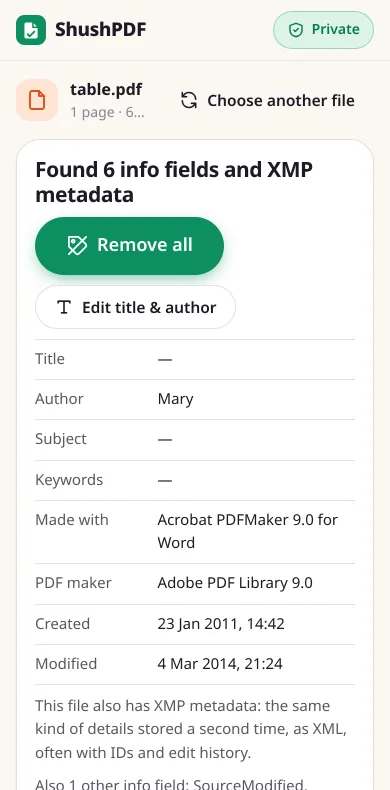
When you choose a file, we show what it says in plain words, for example Author: Mary and Made with: Acrobat PDFMaker 9.0 for Word, and tell you if it also has XMP metadata.
Remove all, or keep a title and author
Remove all deletes the document info and every XMP block in the file (for the whole document, and on pages, pictures or fonts that have their own). Old, unused copies of these details that earlier edits left inside the file are left out too. We do not write our own name or a new date into your PDF, as many PDF tools do.
Edit title & author shows two boxes with the current title and author. Change them, tap Save, and only those two are kept. Everything else is removed.
Pages, text, links, comments, bookmarks and form fields are not changed. Your copy is named with "-clean" at the end, and you can type another name before you download.
What we tested
On 1 November 2026 we ran this page in Chrome at phone size (an automated test on a computer) with real public PDFs. First we checked that what the page showed matched the free pdfinfo tool. After Remove all we checked each clean copy with pdfinfo and pdf-lib: no title, author, subject, keywords, app, PDF maker or dates left, and no XMP metadata. The text read out with pdftotext was exactly the same, and so were the page count, the links and the form fields. Pictures of the pages before and after did not differ by one pixel. Times are from a test server on the same computer.
- IRS Form W-9 (6 pages): 9 info fields, among them Made with: Designer 6.5, and XMP metadata. 0.2 seconds, 141 KB before and 130 KB after.
- USCIS Form I-9 (4 pages, 8 links, 125 form fields): 7 info fields and XMP metadata. 0.3 seconds, 524 KB before and 524 KB after.
- A W3C example file made in Word: Author: Mary, Made with: Acrobat PDFMaker 9.0 for Word, 6 info fields and XMP metadata. Under 0.1 seconds, 67 KB before and 52 KB after.
- The arXiv paper "Attention Is All You Need" (15 pages, 113 links), made with pdfTeX: 6 info fields and no XMP, but 5 of its figures still carried Adobe Illustrator data naming the person and file they were made by. All of it was removed. 1.3 seconds, 2.2 MB before and 1.5 MB after, and all 15 pages looked the same.
- IRS Publication 15 (59 pages, 544 links): 8 info fields and XMP metadata. 1.3 seconds, 1.71 MB before and 1.73 MB after, and all 59 pages looked the same. The word "Adobe" was still inside the file, in the data of two pictures: we do not change pictures.
- A scanned 1982 letter from the JFK collection of the US National Archives (2 pages): 5 info fields and XMP metadata. Under 0.1 seconds, 116 KB before and 110 KB after.
- Edit title & author on the W3C file, with the title "Quarterly table" and the author "Team": the clean copy had only those two fields and no XMP metadata.
- A copy of the filled W-9 with the password "test123": we asked for the password, then removed 9 info fields and the XMP metadata. The clean copy opens without a password.
What it does not remove
This page clears the details a PDF keeps about itself. It does not change what is on the pages: text in small print or under a box, comments, form answers and pictures stay as they are. To remove private text for good, use Redact PDF. To make comments and form answers part of the page, use Flatten PDF.
Pictures inside a PDF can carry their own camera details (EXIF), such as the date or place a photo was taken, inside the picture data. We do not change pictures, so these stay. Files attached inside the PDF are kept too.
A PDF/A archive file is no longer marked as PDF/A, because that mark lives in the XMP metadata. A password PDF needs its password, and the clean copy has no password. We have not tested this page on a real iPhone or Android phone yet.
How it works
- 1Choose your PDF
- 2Check the title, author, app and dates we found
- 3Tap Remove all (or Edit title & author), then Download
Questions
What does Remove all take out?
The document info (title, author, subject, keywords, the app it was made with, the PDF maker, the created and modified dates, and any other fields an app added) and all XMP metadata. The file then has 0 info fields left, and we show that count from the saved file.
Does it remove hidden text, comments or form answers?
No. Those are part of the pages, not metadata. Use Redact PDF to remove private text for good, and Flatten PDF to turn comments and form answers into part of the page.
Will my PDF look different?
No. Only the details about the file are removed. In our tests the pages looked exactly the same before and after, and the text, links and form fields were all still there.
Does it remove photo location (EXIF) from pictures in the PDF?
No. Camera details stored inside a picture are part of the picture, and we do not change pictures. If that matters, remove them from the photo before you put it into a PDF.
Can I remove metadata from a password-protected PDF?
Yes, if you know the password. Type it when we ask. It is only used on your device to open the file, and the clean copy opens without a password. To add one again, use Protect PDF.
Does it change the file name?
Only by adding "-clean" at the end, for example report-clean.pdf. A file name can say a lot too, so you can type a new one in the File name box before you download.
Is my PDF uploaded to remove the metadata?
No. Your PDF is read and cleaned inside your own browser, on your own device, and is never sent anywhere.
Is it really free? Do I need an account?
Yes, it is free, with no account, no daily limit and no watermark. Because your device does the work, it costs us almost nothing to run.