Make a scanned PDF searchable
We read the words on each scanned page and add them to the PDF as invisible text, so you can search, select and copy them. The pages look the same. Nothing is uploaded.
or drop a PDF here
Stays on your phone or computer. Only you see it.
What OCR does to your PDF
A scanned PDF is a stack of pictures of pages. You can read it, but your computer cannot: searching for a word finds nothing, and you cannot select or copy a sentence. OCR (optical character recognition) reads the words in each picture. We then add them to the PDF as invisible text, each word at the place where it is printed on the page.
The pages themselves are not changed, so the PDF looks exactly the same. But now Find (Ctrl+F on a computer) finds words, you can select and copy text, and apps that search inside your files can find it too. To only copy the words out of a scan, without making a new PDF, use PDF to Text.
Pages that already have text
When you choose a file, we first check every page. If a page already has text, for example a typed page in a scanned file, we tell you, for example Page 3 already has text. Then you choose. Skip pages with text keeps those pages as they are and only reads the others, which is what you want in most cases. Read all pages reads them too, for a PDF whose text is wrong or has gaps. Their old text stays, so some words can then show up twice when you search or copy.
Your file stays on this device
Every page is read inside your browser, one at a time, so nothing is uploaded. The first time, we tell you before anything is downloaded: the text reader is about 6 MB and comes from our own website, not from another company. It is the same reader as in PDF to Text and Image to Text, so if you used one of those, it is already on your device. Your browser keeps it, so the next time it starts straight away, also without internet.
You can tap Cancel at any time while the pages are read. Password-protected PDFs work too: type the password and the file is opened on your device. The searchable copy has no password, so add one again with Protect PDF if you need it.
What we tested
On 1 November 2026 we ran this page in Chrome at phone size (an automated test on a computer) with real public scans that have no text inside. To check the words, we typed out part of a page ourselves and counted how many words came out right and in the same order. Then we opened each searchable copy in two other PDF readers (pdftotext and pdf.js) and searched for names on the page, compared pictures of every page before and after (not one pixel changed), and checked that each word's box sits on the printed word. Times are from a test server on the same computer. The first file also waited for the 6 MB download.
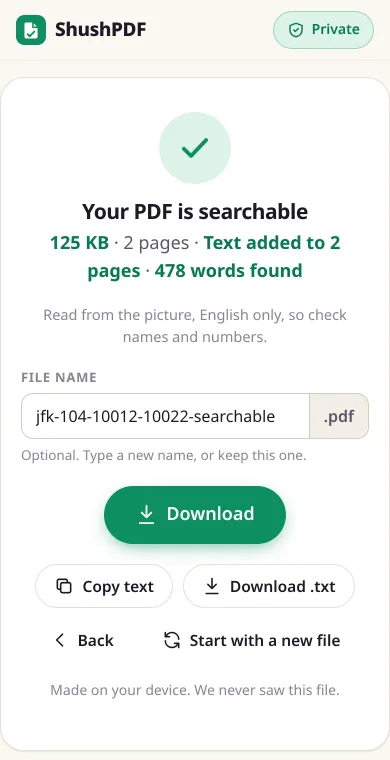
- A typed 1982 letter from the JFK collection of the US National Archives (2 pages, 116 KB): 478 words in 4.3 seconds. Of the 293 words we typed out from page 1, 98.6% came out right and in order, and every name we searched for, such as Kostikov, Havana and Moscow, was found. The file grew to 125 KB.
- The 1920 booklet "I Saw Lincoln Shot!" from archive.org, scanned at 200 dpi (10 pages, 5.8 MB, text in two and three columns): 7,816 words in 48 seconds, 4 to 9 seconds for each page of text. Of 116 words we typed out from page 1, 97.4% came out right and in order. archive.org has its own text of the booklet, also made by OCR, so not perfect itself: we found 94.5% of its 8,234 words, and 84.3% in the same order, as the columns and boxes were not always read in the same order. The three cover pages got no text. The file grew from 5.84 to 5.98 MB.
- A distribution form from the same collection (2 pages, 65 KB): 64 words in 3.3 seconds. 4 of the 8 printed words we searched for were found, such as Hamburg and Vienna. Berlin, Bonn, Saigon and Mexico, in small boxes, were not.
- A grey, speckled 1964 memo from the same collection (2 pages): most of the 283 words found are nonsense read from the grey background, and only "Warren" of the 7 names we searched for could be found, in one of the two readers. A scan like this is too poor for OCR.
- Pages with text: archive.org's own copy of the booklet already has text on 8 of its 10 pages, and the page said so. With Read all pages, the words then showed up twice (8,134 words before, 15,518 after). In a 4-page file where only page 3 had text, Skip pages with text kept page 3 exactly as it was and read the other three.
- Cancel: on page 2 of the booklet, Cancel went straight back to the start and nothing was saved. Offline: after one run we turned off the internet and reloaded the page, and the 1982 letter was made searchable again, with the same words.
What it cannot do
It reads English only. Words in other languages come out wrong or are left out.
How well it reads depends on the scan. Clean, straight, printed pages give the best result. Faint, blurry, crooked or very small text gives more mistakes, so check names and numbers before you rely on a search. We have not tested handwriting.
Each word is placed where the reader found it, so a selection usually lines up with the printed word, but the positions are not exact, and text in columns or tables can be copied in a mixed-up order. Only the words are added, not the fonts or the layout.
How it works
- 1Choose your scanned PDF
- 2Tap Make searchable (the first time, it downloads the text reader)
- 3Wait while each page is read, then tap Download
Questions
How accurate is it?
It depends on the scan. In our tests, 98.6% of the words on a clean typed letter came out right, and 97.4% on a page of a printed 1920 booklet. On a grey, speckled photocopy most words were wrong. Sharp, straight scans of printed text work best. We have not tested handwriting.
Which languages does it read?
English only. The text reader only has the English model, so letters with accents can come out wrong and other alphabets are not read. The invisible text uses a standard PDF font, so a word with letters that font cannot write is left out.
Is my PDF uploaded?
No. Every page is read inside your browser, on your device. The only thing downloaded is the text reader itself, from our own website, the first time you tap Make searchable. Your PDF is never sent anywhere.
How big is the download, and does it work offline?
About 6 MB, the first time you tap Make searchable. Your browser keeps it, so after that the text reader starts straight away and also works without internet. If you already used it in PDF to Text or Image to Text, it is already on your device.
Can I use a password-protected PDF?
Yes. Type the password and the file is opened on your device. The password is not saved, and the searchable copy opens without one. To add a password again, use Protect PDF.
Will my PDF get bigger?
A little, as the words are added to it. In our tests the files grew by 2% to 8%: a 2-page letter from 116 KB to 125 KB, a 10-page booklet from 5.84 MB to 5.98 MB. The pages themselves are kept as they were, so the file does not get smaller either.
Will my pages look different?
No. The pages are kept exactly as they were and the words are added as invisible text, which only shows when you select or search. In our tests, pictures of every page before and after were the same, pixel for pixel.
Is it really free? Do I need an account?
Yes, it is free, with no account, no daily limit and no watermark. Because your device does the work, it costs us almost nothing to run.