Copy text from a photo or screenshot
Choose a picture and we read the words in it, right on this device. Then copy the text or save it as a .txt file. Nothing is uploaded.
or drop photos here
Stays on your phone or computer. Only you see it.
Photos, screenshots and iPhone pictures
Choose a JPG, PNG, WebP or HEIC picture, or several at once. Each one gets its own card with a small preview and its text in a box. Tap Copy on a card to copy that picture's text, or Copy all for every picture. Download .txt saves it all as one plain text file, with the name of each picture before its text.
Photos taken with the phone on its side are turned the right way up first, the way the phone saved them. iPhone HEIC photos open too: if your browser cannot show HEIC itself, a small HEIC reader is downloaded from this site the first time, the same one HEIC to JPG uses.
Your pictures stay on this device
The words are read inside your browser with OCR (optical character recognition), so this is image to text without upload: your pictures are never sent anywhere. The first time, we tell you before anything is downloaded: the text reader is about 6 MB and comes from our own website, not from another company. Nothing is downloaded until you tap Read text.
Your browser keeps the reader, so the next time it starts straight away, also without internet. It is the same reader as in PDF to Text, so if you used OCR there, it is already on your device.
Tips for a good result
Screenshots work best: sharp, straight lines of text on a plain background. For a photo of a page, put the page flat, hold the phone straight above it, use good light without shadows or glare, and fill the picture with the text. Small, blurry or tilted text gives more mistakes. If the text is small on screen, zoom in before you take the screenshot.
What we tested
On 31 October 2026 we ran this page in Chrome at phone size (an automated test on a computer) with real pictures. To check the result, we wrote down the true words of each picture ourselves and counted how many of them came out right and in the right order. The times include opening the picture and, the first time, the 6 MB download, from a test server on the same computer. With the reader already on the device, the second run took about as long; over a real internet connection the first run also waits for the download.
- A screenshot of our own PDF to Text page at iPhone size (PNG, 1170 × 2532): all 83 words right (100%), in about 1 second.
- A screenshot of the English Wikipedia main page (PNG, 1920 × 1080, from Wikimedia Commons): 66% of the words in order. The words themselves were mostly right, but the page has two columns, and lines from both often came out mixed together.
- A camera photo of an English museum placard (JPG, 3648 × 2736, 2.2 MB, from Wikimedia Commons): 98% of its 198 English words right, in under 3 seconds. Its Chinese text came out as made-up capital letters, as the reader only knows English.
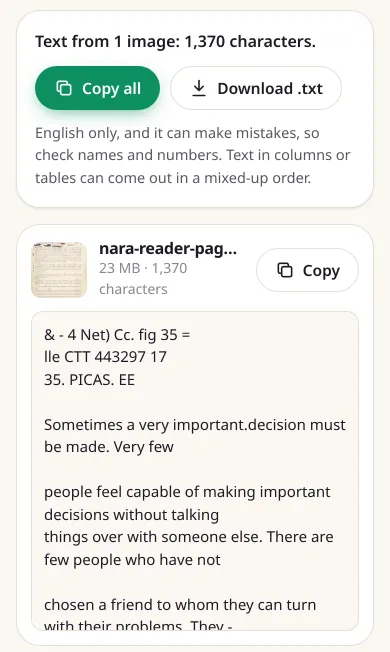
- A scanned printed page from the US National Archives (JPG, 4823 × 6304, 23.6 MB): 99.6% of 241 words right, in about 3.3 seconds. A few stray letters came from the stamps at the top of the page.
- Three real iPhone photos in HEIC (iPhone 13 Pro, 12 mini and XR, 1.3 to 3.1 MB): each opened the right way up and was read in under 4 seconds. They show colour charts with very little printed text. On one it read the brand name "colorchecker", printed sideways, but got the two smaller words wrong. On the other two it found only a few stray letters.
- Offline: after one run, we turned off the internet and reloaded the page. A JPG and a HEIC photo were both read again.
What it cannot do
It reads English only, and it can make mistakes, so check names and numbers before you use them.
Text in two columns, tables, menus or around pictures can come out in a mixed-up order, because the reader finds blocks of text on its own. Only the words are kept, not the fonts or the layout. To put photos of pages into a PDF instead, use JPG to PDF.
How it works
- 1Choose one or more photos or screenshots
- 2Tap Read text (only the first time, as it downloads the text reader)
- 3Tap Copy, Copy all or Download .txt
Questions
Is my picture uploaded to read the text?
No. The text is read inside your own browser, on your device. The only thing downloaded is the text reader itself, from our own website, the first time you tap Read text. Your pictures are never sent anywhere.
Which pictures can I use?
JPG, PNG, WebP and iPhone HEIC photos, one or many at once. So it works for jpg to text as well as screenshot to text. For a PDF, use PDF to Text, which also reads scanned pages.
Can it read my iPhone photos?
Yes. iPhone photos are often saved as HEIC. Choose them as they are: they are opened on your device and turned the right way up, then read. Browsers that cannot open HEIC themselves download a small HEIC reader from this site the first time.
How do I get fewer mistakes?
Use a screenshot if you can, as those work best. For a photo, put the page flat, use good light, keep the phone steady so the text is sharp, and fill the picture with the text. Check names and numbers afterwards.
How big is the download, and does it work offline?
About 6 MB, the first time you tap Read text. Your browser keeps it, so after that the text reader starts straight away and also works without internet.
Why is the text in the wrong order?
The reader looks for blocks of text on the picture and reads them one after the other. That works well for normal paragraphs, but text in two columns, tables and menus can come out mixed up, so check those parts.
Is it really free? Do I need an account?
Yes, it is free, with no account, no daily limit and no watermark. Because your device does the work, it costs us almost nothing to run.