Make a PDF with your own AI chatbot
Your chatbot writes the document. ShushPDF turns its answer into pages you can edit and makes the PDF in your browser. ShushPDF itself runs no AI.
The PDF is made in your browser. No files are uploaded.
How it works
- 1Say what you want, or tap an example such as Exam paper
- 2Tap Copy message and paste it into ChatGPT, Claude or Gemini
- 3Paste the chatbot’s answer, tap Make my document, then Get PDF
How to make a PDF with ChatGPT, Claude or Gemini
- Tap Make it with AI on this page. Create PDF opens with its "Make it with AI" window already open. (On Create PDF itself, the button sits next to Blank page.)
- Under Say what you want, type your request, or tap an example: Exam paper, Invoice, Letter, Worksheet, Form, Flyer or Resume. An example fills in a sample request that you can change. Say what the document is, who it is for and what goes in it.
- Tap Copy message. The button changes to Copied. Open Claude, ChatGPT or Gemini (the window links to all three), paste the message and send it.
- The chatbot answers with a block of code that starts with {. Copy the whole answer, for example with the copy button on the code block.
- Back in ShushPDF, paste it into the box under Paste the chatbot’s answer and tap Make my document. If you saved the answer as a file, tap Or open a .json file instead.
- Your document opens in the normal editor. Change anything you like, tap Get PDF, then Download on the next screen.
On a phone, the steps are the same: copy the message into the chatbot app, then come back to the browser tab to paste the answer. To type a document yourself instead, see our guide on making a PDF on your phone by typing.
What the chatbot gets, and what ShushPDF does
The message you copy is our instructions, followed by your request. The instructions teach the chatbot to reply in a small format we call ShushPDF JSON: a list of headings, paragraphs, questions, tables and so on, top to bottom. Nothing from your device is added. You can read every word first under What is in the message? in the window, or read the instructions on their own.
ShushPDF runs no AI model and sends nothing to any chatbot. The writing is done by the chatbot you pick, in your own chat with it. Your browser then turns its answer into pages and makes the PDF on your phone or computer, so no file is uploaded.
This is why the paste box needs that JSON answer. If you paste an ordinary letter or essay, it says "This does not look like ShushPDF JSON". To turn text you already have into a PDF, open a blank page in Create PDF and paste it there instead.
What you can make this way
The examples in the window are an exam paper, an invoice, a letter, a worksheet, a form, a flyer and a resume. Anything built from these parts works:
- headings, paragraphs, and bold, italic or underlined words
- numbered questions with (a) (b) (c) (d) answers side by side
- marks or prices on the right edge, added up into a total
- Name lines, date boxes and one-letter boxes to fill in by hand
- lines to write answers on, and empty boxes to draw in
- tables, tick boxes, side-by-side columns and boxed sections
- an empty space for a photo, which you fill with your own photo later
The chatbot can also set the page size (A4, Letter, Legal, A5 or A3), turn the page sideways, add a header or footer with page numbers, and pick lined, grid or dotted paper.
What we made
Each of these opened in the editor and downloaded as a PDF with real text you can select and search. Sizes are of the downloaded file.
| What we asked for | Pages | Size |
|---|---|---|
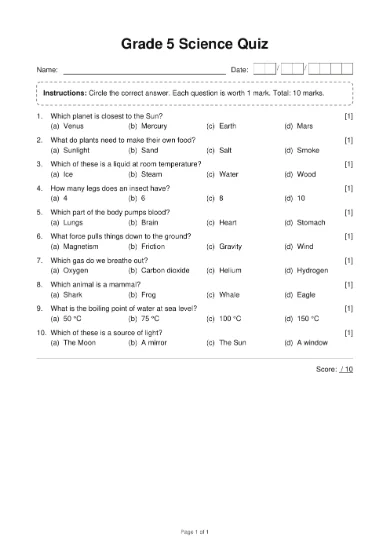
| A 10-question Grade 5 science quiz, 4 answers each, 1 mark each | 1, A4 | 4,857 bytes |
| The Worksheet example: 8 fraction sums with lines for working | 2, A4 | 2,598 bytes |
| The Flyer example: a book fair with a photo space | 1, A4 | 1,633 bytes |
In the quiz, "Total: {total} marks" came out as "Total: 10 marks", and the worksheet total as 14. The flyer’s photo space stayed blank in the PDF, because we did not add a photo. We also put a part ShushPDF does not know ("logo") into the flyer answer: it was left out, and a yellow box said so.
What it cannot do
ShushPDF does not write anything itself, and it does not check facts, sums or spelling. Chatbots make mistakes, so read the document before you print or send it.
A chatbot cannot add photos or logos. It leaves an empty photo space instead: tap it in the editor to add your own photo. If you leave it empty, that part of the PDF stays blank. Web addresses of pictures are never loaded.
Parts ShushPDF does not know are left out and listed in a yellow box, with a Copy for the chatbot button that copies the list so the chatbot can fix it.
Text in scripts such as Sinhala, Tamil or Chinese is saved as a sharp picture of the line, so it cannot be selected or searched. Form fields that others type into accept English letters and numbers only.
Already have a document? Change it with AI
In the editor, the menu at the top (the three dots) has Copy for AI. It copies your document with a line asking the chatbot to change it: add what you want changed, and paste the answer back with Paste from AI in the same menu. While typing, type /ai and press Enter for Write with AI, which writes one part, such as five questions, where your cursor is.
How this page was made: drafted with AI help, tested with ShushPDF on 14 November 2026, and reviewed by the ShushPDF team before publishing.
Questions
Does ShushPDF use AI to write my PDF?
No. ShushPDF runs no AI model and sends nothing to one. You use your own chatbot, such as ChatGPT, Claude or Gemini, and paste its answer back. ShushPDF then lays it out as pages and makes the PDF in your browser.
Which chatbots can I use?
The window links to Claude, ChatGPT and Gemini. The message is plain text, so any chatbot that follows it and replies with the JSON should work. If a chatbot adds a sentence around its answer, ShushPDF ignores it. In our own test we wrote the answers ourselves, so we cannot promise every chatbot gets it right the first time.
Is my document uploaded anywhere?
No. The PDF is made in your browser, on your phone or computer, and no file is uploaded to ShushPDF or anyone else. Your draft is saved only in this browser.
What does the chatbot see?
Only what you paste into it: our instructions and your request. That goes to the chatbot’s company like any other chat, so leave out anything private, such as ID or account numbers. Type those into the document in ShushPDF afterwards.
What kinds of documents is it good for?
Documents made of text, lists and tables: exam papers and quizzes, worksheets, letters, invoices, sign-up forms, flyers and one-page resumes. We made a quiz, a worksheet and a flyer this way.
What can it not do?
The chatbot cannot add photos or logos, only an empty space for one. ShushPDF does not check facts or spelling. Scripts such as Sinhala, Tamil or Chinese are saved as pictures of the text, and fillable fields take English letters and numbers only.
Can I paste any chatbot answer, like an essay?
Not into this window. It only reads the ShushPDF JSON the message asks for, and says "This does not look like ShushPDF JSON" for plain text. To make a PDF from text you already have, paste it onto a blank page in Create PDF.
Is it really free? Do I need an account?
Yes, it is free, with no account, no daily limit and no watermark. Because your device does the work, it costs us almost nothing to run.